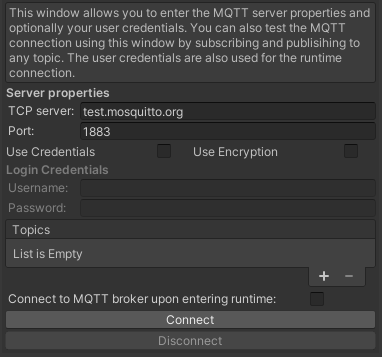
| List of topics to subscribe to. All subscription topics used in the Unity project should be declared here. | Optional (Required for subscription functionality) |
| Connect to MQTT broker at runtime | Boolean | Disables editor time connection and enables connection upon entering runtime. Only enable this setting after testing the connection in editor time. | Optional |
Upon opening the editor window initially, the `Server Address` and `Port` variables are pre-configured. This allows quick testing of a connection to [`test.mosquitto.org`](https://test.mosquitto.org/). To verify, click the gray connect button at the bottom of the MQTT editor window. A debugging message should appear in the console stating `Connected to: test.mosquitto.org:1883`, indicating successful functionality.
## Workflow
1. **Setup MQTT broker**. If you already have an account and password provided by the Digital Twin Lab or if you already setup your own broker, go to step 2. For certain projects it is possible to make use of the MQTT broker of the Digital Twin Lab. If you want to make use of the MQTT broker of the Digital Twin Lab, but dont have credentials yet, [please contact us via e-mail](mailto:digitaltwin.eaisi@tue.nl).
2. Open the `MQTT Editor Window` via `Tools -> EAISI Digital Twin Lab -> MQTT editor` in the Unity Editor. A new window will open alongside the `Inspector` window.
3. To test the library, click the `Connect` button on the bottom of the MQTT editor window without altering any parameters. This solely tests if the interface can connect to an MQTT broker; no messages are relayed. A message stating `Connected to: test.mosquitto.org:1883` should pop up in the `Console` window within Unity. Clicking `Disconnect` disconnects the Unity client from the MQTT broker, indicated but the message `Disconnected from: test.mosquitto.org:1883`.
4. Establish the connection to the desired MQTT broker. **Ensure to complete step 1 of this workflow.**
5. Fill in the parameters in the MQTT editor window as described in [MQTT broker connections](#mqtt-broker-connections) based on your MQTT broker settings. Click `Connect`, if no connection is established, an error message will pop up in the Console. I.e. `SocketException: Could not resolve host 'test.mosquittofalse.org'`, indicating the wrong server adress. Any error concerning a `MqttCommunicationTimedOutException` indicates a wrong port. If a connections is established, click `Disconnect`.
6. If applicable, test receiving messages from the MQTT broker by adding subscription topics in the `Topics` list. Click the `+` button and enter the full path to the variable intended for reception in Unity. After clicking `Connect`, the topic and value should display in the `Received` header at the bottom of the MQTT editor. Click `Disconnect`.
7. If applicable, test sending messages to the MQTT broker from Unity. After clicking `Connect`, a `Publish` header should appear below the `Disconnec`t button. Enter the topic's path in the `Topic` field and the message to publish in the `Message` field. To verify message reception, check the MQTT broker or any MQTT client subscribed to the publishing topic. Click `Disconnect`.
8. To receive messages at runtime, populate all topics intended for subscription dor the Unity project in the `Topics` section and check the `Connect to MQTT broker upon entering runtime box`. Once checked, no changes can be made to the MQTT editor window. Unity will automatically connect to the MQTT broker and subscribe to the specified topics. To access received messages at runtime, utilize something like the `DataManager` script attached to the `Data Objec`t prefab found under the folder `.../DT lab/MQTT`. This script subscribes to all topics listed in the subscription topic list of the editor window via the `MessageManager`. It stores these values in a public string each time the value changes and uses the `Update()` functionality to display them in the Inspector window. In summary, to receive data from a topic at runtime, your `MonoBehaviour` script should call:
MessageManager.Instance.SubscribeToTopic(topic, HandleFunction);
Where `topic` is the subscription topic, and `HandleFunction` is the function that gets called when the value on the topic gets updated. An example of this is shown below.
    private void HandleFunction(string topic, string message)
    {
        SubscribedTopics[topic] = message;
    }
This function stores the received message of the topic in the dictionary `SubscribedTopics`, though self-defined function can be used as well.
9. Publishing in run time can be achieved by calling the function below.
MQTT_lib.PublishToTopic(TopicToPublish, message.ToString());
`TopicToPublish` is a string of the full path of the topic you want to pulbisch to. `message` is the message to publish. Make sure this message is converted to either a string or [JSON format](https://developer.mozilla.org/en-US/docs/Learn/JavaScript/Objects/JSON).
10. Steps 6 to 9 can be iterated as needed to attain the desired data interface between Unity and the MQTT broker.
## Development
1. Code needs to be reviewed.
2. Build needs to be checked.